Use it
Drawings
The whiteboard among your notes, its tools and shortcuts, drawing together, and Excalidraw.
A drawing is a whiteboard in your vault: boxes, circles, arrows, text, sticky notes, pictures and freehand lines, with a hand-drawn look (or a neat one). Use it to sketch an idea, plan a room or a garden, explain something with arrows, or write on a picture. You can draw together with the people you share the vault with, live.
Drawings work with Excalidraw: a drawing opens there looking the same, and Excalidraw's drawings come in here.
Not to be confused with a diagram: a diagram is typed as text inside a note and laid out for you; a drawing is drawn by hand and everything stays where you put it. Diagram or drawing? compares the two.
On a Mac, press ⌘ where this page says Ctrl.
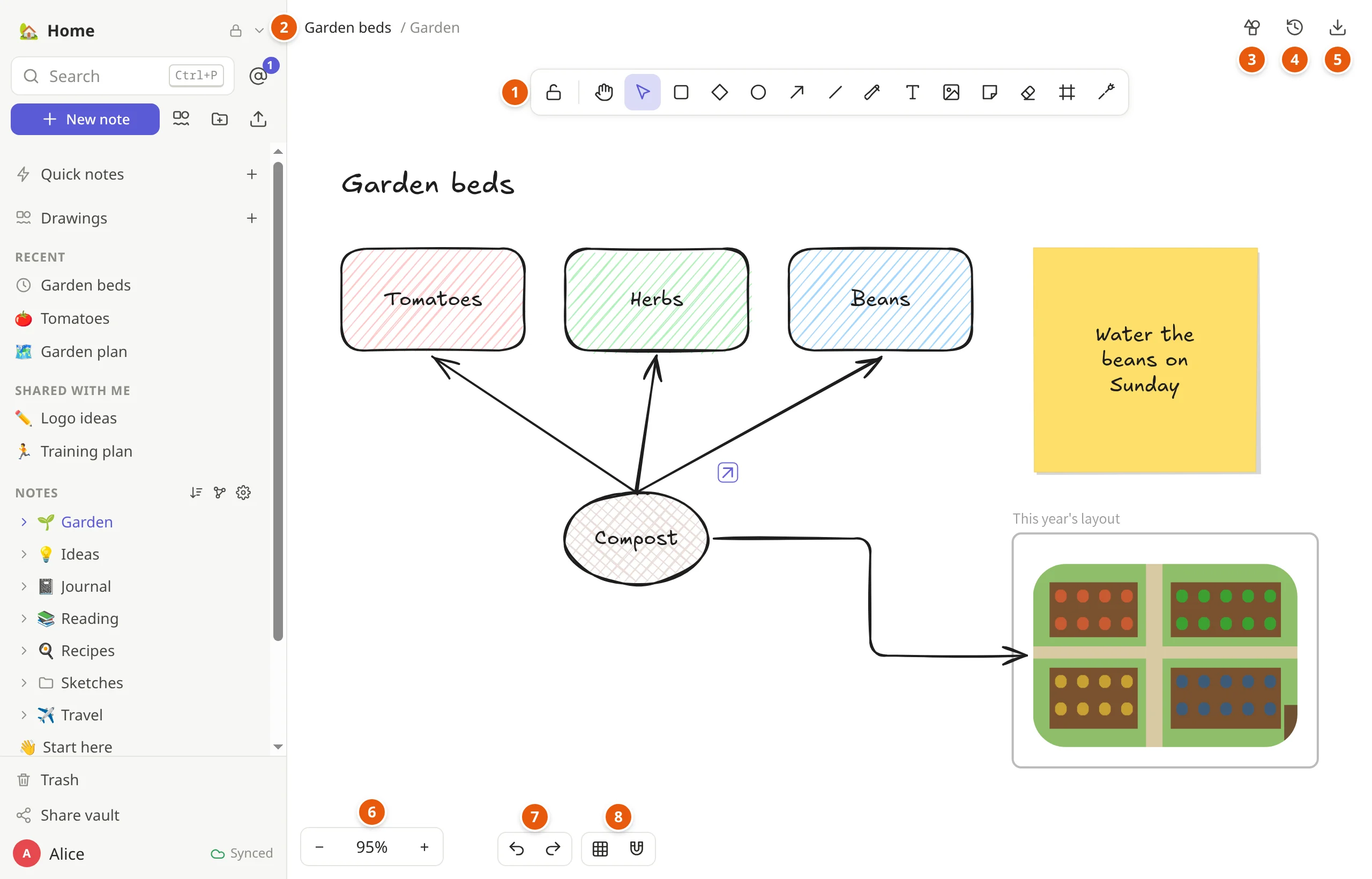
- The tools: shapes, arrows, the pen, text, pictures and more (below).
- The drawing's name: click it to rename the drawing.
- Saved shapes: shapes you keep, to use in any drawing.
- Version history: earlier versions, to restore or download.
- Download (⤓): as a picture or a file for Excalidraw or Obsidian, or copy it; also copies the line that shows it in a note.
- Zoom out and in; the percentage shows how far.
- Undo and redo.
- The grid and snapping to other shapes.
Starting one
The drawing button next to New note in the sidebar starts one in the vault. Give it a name at the top.
Drawings in the sidebar shows every drawing of the vault as a picture. They're also in the sidebar's folders, among the notes, and move and rename like notes.
To show a drawing inside a note, write
. The note shows the drawing, kept up to date as it changes: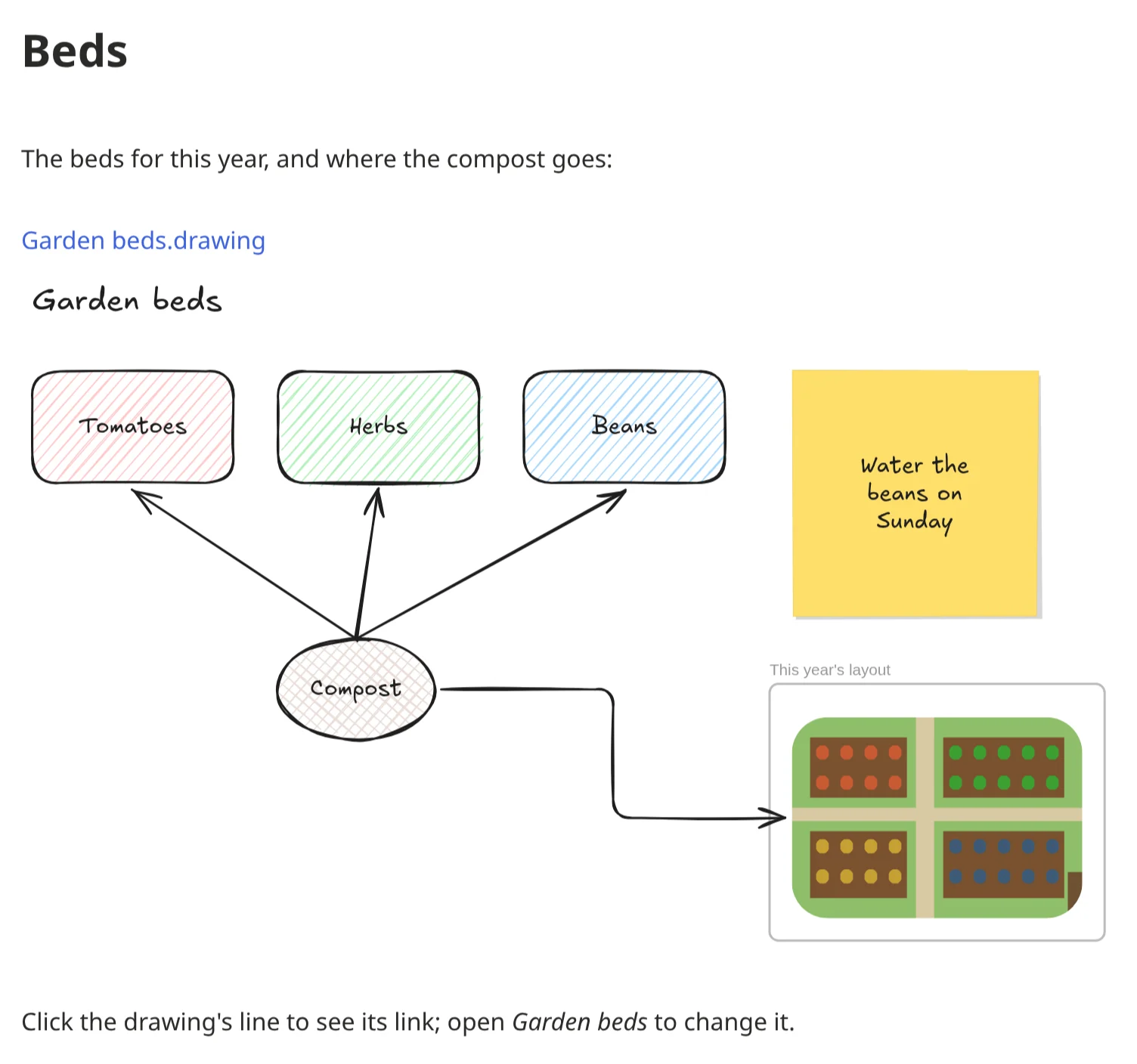
The tools
The toolbar at the top, each with its key:
| Tool | Key | For |
|---|---|---|
| Hand | H | moving around the drawing (or hold Space and drag) |
| Selection | V or 1 | picking things to move, resize or change |
| Rectangle, Diamond, Ellipse | R, D, O (or 2, 3, 4) | shapes: drag to draw one |
| Arrow | A or 5 | arrows, which stick to the shapes they point at |
| Line | L or 6 | lines; click point by point for a path |
| Draw | P or 7 | freehand, like a pen |
| Text | T or 8 | text anywhere |
| Insert image | 9 | a picture (or paste or drop one) |
| Sticky note | N | a sticky note, dated |
| Eraser | E or 0 | rubbing things out |
| Frame | F | a frame that holds what's in it |
| Laser pointer | K | pointing at things for others to see; it fades |
After drawing a shape, the tool goes back to Selection. Q (or the lock
at the start of the toolbar) keeps the tool, to draw several in a row.
Changing what you drew
Select with a click, several with
Shift+click or by dragging a box around them. Drag to move, pull the handles to resize or turn.The panel beside a selection changes its colors and fill (hachure, cross-hatch, solid), the stroke's width and style, how sloppy the hand looks, round or sharp edges, the font and size of text, and opacity.
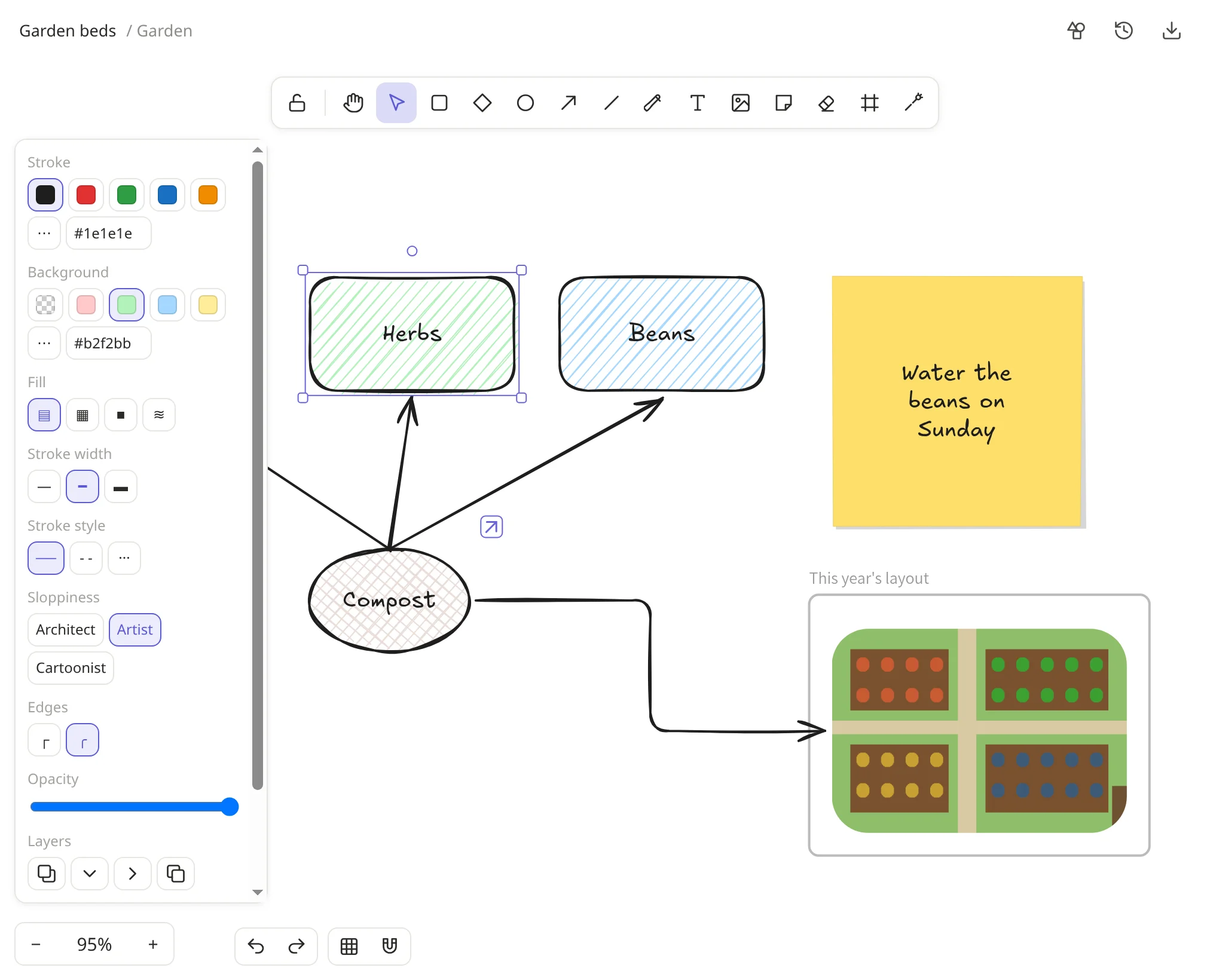
Text in a shape: double-click the shape (or select it and press Enter) and type. The text wraps, and the shape grows to hold it. Double-click an arrow or line to give it a label.
Arrows dropped near a shape attach to it, and follow it when it moves. Arrow types: sharp, curved, or elbow (right angles, finding their own way around).
Copy:
Ctrl+Dduplicates,Alt+drag drags a copy.Group (
Ctrl+G,Ctrl+Shift+Gto ungroup), lock so it can't be moved by accident (Ctrl+Shift+L), bring forward or send backward (Ctrl+],Ctrl+[), align and spread evenly.Delete with
DeleteorBackspace.Undo with
Ctrl+Z, redo withCtrl+Shift+Z: your own changes, not those of others drawing at the same time.
Moving around
The mouse wheel scrolls; Ctrl+wheel (or pinching on a touchpad) zooms.
On a touch screen, two fingers pinch to zoom. Shift+1 shows the whole
drawing. Ctrl+' shows a grid, and Alt+S makes things snap to the
edges and centers of others as you move them (hold Ctrl while dragging
to stop snapping that once).
Pictures
Paste or drop a picture onto a drawing, or use Insert image (9).
Double-click it (or press Enter) to crop it. Pictures are kept as files of
the vault, encrypted, in an attachments folder next to the drawing.
Sticky notes and frames
- Sticky notes (
N): type on them; the text shrinks to fit, and the day you made it is written at its foot. - Frames (
F) group a part of the drawing: what you draw or drop inside moves with the frame and is cut off at its edge. Double-click its name to rename it. A frame selected on its own is what gets exported or copied, alone.
Links
Select something and press Ctrl+K to link it to a web page, or to a note
of the vault ([[Trip plan]]). A button by it then opens the link.
Saved shapes
Shapes you use again and again (a symbol, a template) can be kept: select
them, open Saved shapes (the button with the overlapping shapes) and
choose Add to saved shapes. From there, drag them into any other
drawing. They're yours, on all your devices.
Excalidraw's .excalidrawlib libraries can be imported there too, and
yours exported.
Drawing together
Everyone in the vault can open the same drawing at once: you see their pointers with their names, what they've selected and their laser pointer, and who is on the drawing at the top. Drawn offline? It merges when you're back. Version history (the clock) keeps earlier versions, shown as pictures, to restore or download.
Excalidraw, Obsidian, and pictures
- Copy and paste between notekpr and excalidraw.com (or Obsidian's Excalidraw plugin) both ways.
- Download from the ⤓ menu at the top: as a picture (PNG or SVG), as a
file for Excalidraw (
.excalidraw) or for Obsidian (.excalidraw.md), or as notekpr's own.drawing. The pictures keep the drawing inside, so they open again as drawings.Shift+Alt+Ccopies the drawing (or what's selected) as a picture. - Importing a folder or an Obsidian vault turns its Excalidraw drawings into drawings. Dropping an Excalidraw file onto a drawing adds what's in it.