Use it
Getting started
Your first sign-in, finding your way around the app, organizing and finding notes, sharing, your other devices, and notekpr on your phone.
notekpr keeps your notes, drawings and files, in your browser and on any device you sign in on. Everything is encrypted on your device before it goes anywhere: the server keeps it, but can't read it, and neither can whoever runs the server.
This guide walks through the app as you'll use it day to day. Two more pages go deeper: Writing notes (headings, lists, links, pictures, tables, math, diagrams) and Drawings (the whiteboard). Features lists everything, with every shortcut.
On a Mac, press ⌘ where this guide says Ctrl.
Your first sign-in
- Sign in the way your server offers: its own sign-in page, or your organization's account.
- notekpr makes your encryption keys on this device. Your notes are locked with them before anything is uploaded.
- Save your recovery key. It's shown once: copy it into a password manager, or print it and keep it somewhere safe. If you ever lose every device you're signed in on, it is the only way back to your notes. Nobody can reset it for you, not even whoever runs the server. (Settings → Recovery makes a new one whenever you need it.)
- You start in your first vault, My notes, with a Welcome note of things to try. Tick them off as you go, and delete it when you're done.
Around the app
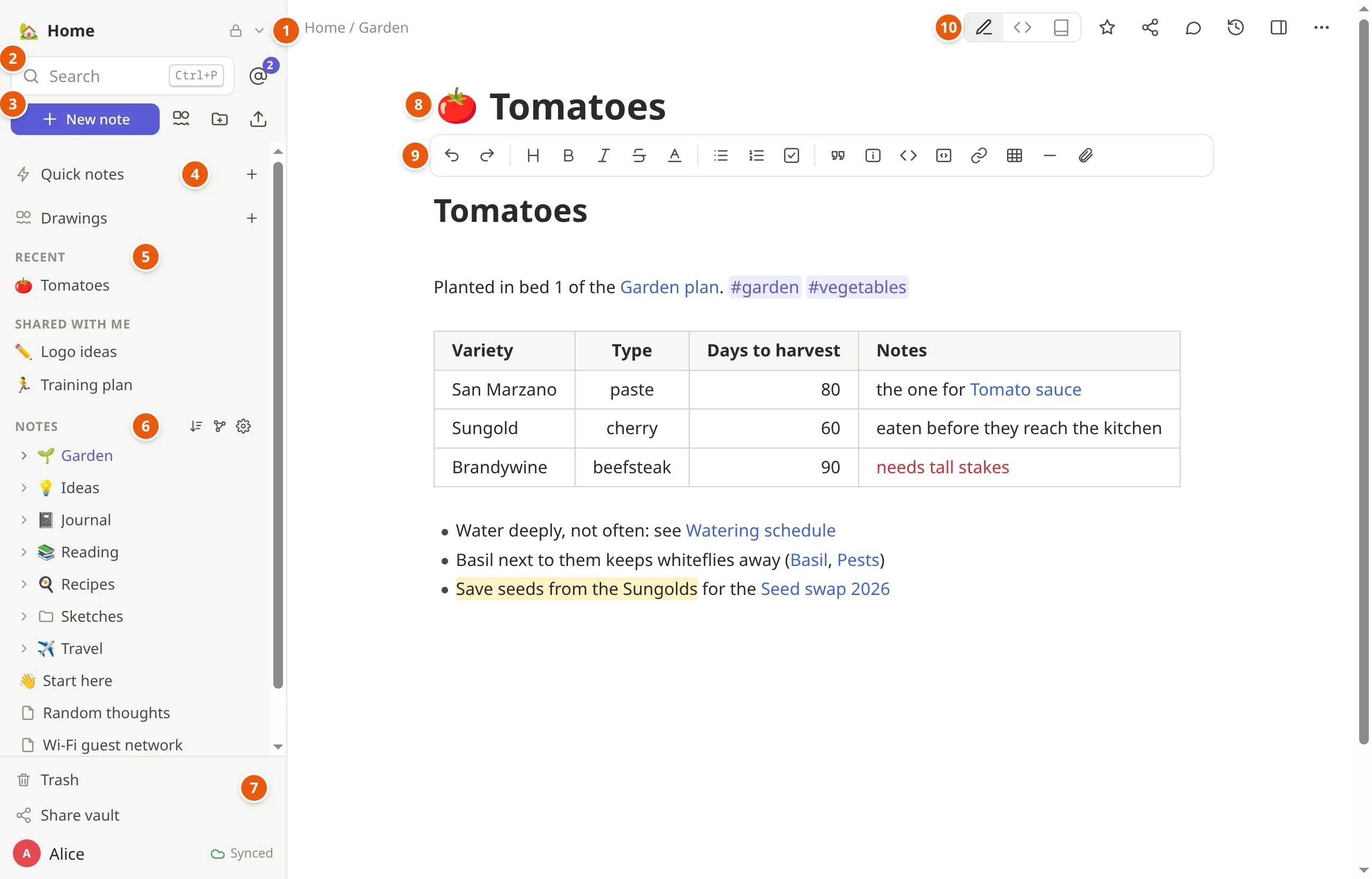
The sidebar, on the left (on a phone, the button at the top left opens it):
- The vault's name switches between your vaults. All vaults shows them all as cards.
- Search jumps to a note by its name (
Ctrl+P). The @ beside it lists where people mentioned you. - New note, and beside it buttons for a new drawing, a new folder and uploading files.
- Quick notes and Drawings (more on both below).
- Recent: the notes you opened lately. Above it, Favorites once you star a note; below it, Shared with me: single notes others shared with you.
- Notes: the vault's folders and notes. Click one to open it; each row's ⋯ menu renames it, gives it an icon, moves it or deletes it.
- At the bottom: the Trash, Share vault, and your name, which opens Settings, Keyboard shortcuts, the theme (light, dark or your system's) and Sign out. Next to your name: whether everything is Synced.
The note, on the right:
- The title is the note's name (the icon before it is the note's
own: click it to choose one). Enter (or
↓) takes you into the text. - The toolbar formats the text: headings, bold, lists, checklists, links, tables, pictures and more. Writing notes explains each button.
- The buttons at the top right:
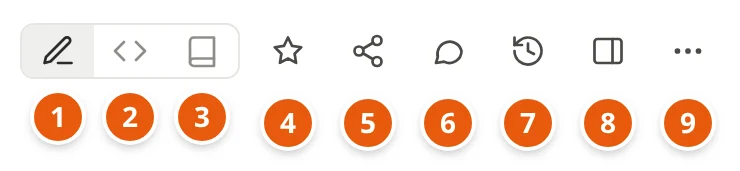
- Live preview: the usual way to see a note, formatted as you type.
- Markdown source: the plain text, every mark showing.
- Reading view: just reading (
Ctrl+Eswitches). - ☆ adds the note to your Favorites.
- Share this one note with someone.
- Comments on the note (a number says how many).
- Version history: its earlier versions.
- Side panel (
Ctrl+\): links to and from the note, its outline and tags. - ⋯ for the rest: download it as Markdown, copy a link to it, set an icon, move it, move it to the trash.
There is no save button
Everything is saved as you type, and synced to your other devices and to everyone you share with, usually within a second. If you're offline, your changes wait in the browser (the sidebar says Offline) and go out when you're back. Two people changing the same note at the same time is fine: their edits merge.
Vaults, folders and notes
A vault holds notes, drawings and files that belong together, and is shared as a whole: one for yourself, one for the family, one for work. Make one from All vaults → New vault. Its ⚙ Vault settings rename it, give it an icon, export it and import notes into it; its owners and admins also see its activity log there.
Folders sort the notes in a vault. Drag a note or folder onto a folder to move it there, or between two others to put it in that place; everyone in the vault sees the same order (Sort A–Z puts it back in alphabetical order).
Icons: any emoji, or a picture of your own, for a note, folder or vault: Set icon… in its ⋯ menu, or the icon beside a note's title.
Moving to another vault: Move to vault… in the ⋯ menu takes a note or a whole folder there, with its pictures and files.
The trash: deleted notes, drawings and files wait there until you empty it, and you can restore them. Even emptying it can be undone for a while (30 days, unless your server says otherwise).
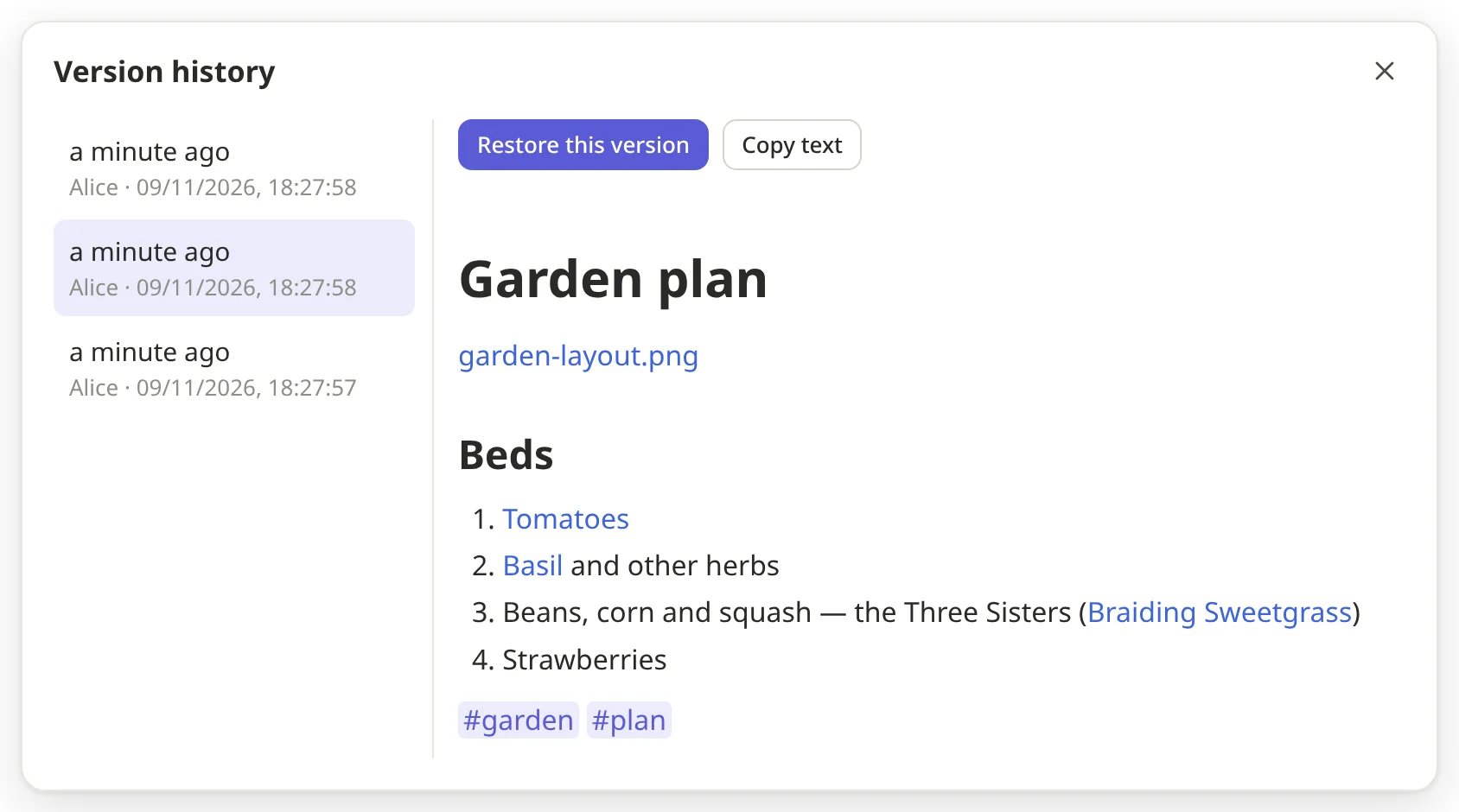
Version history: every note keeps its earlier versions. The clock at the top shows them; pick one to see it, then restore it or copy its text.
Finding things
Ctrl+P: type part of a note's name and press Enter. If no note has that name, Enter makes one.Ctrl+Shift+Fsearches the text of every note. Narrow it down withtag:garden,folder:Recipes,title:planorvault:Work, and put"words in quotes"to find them together.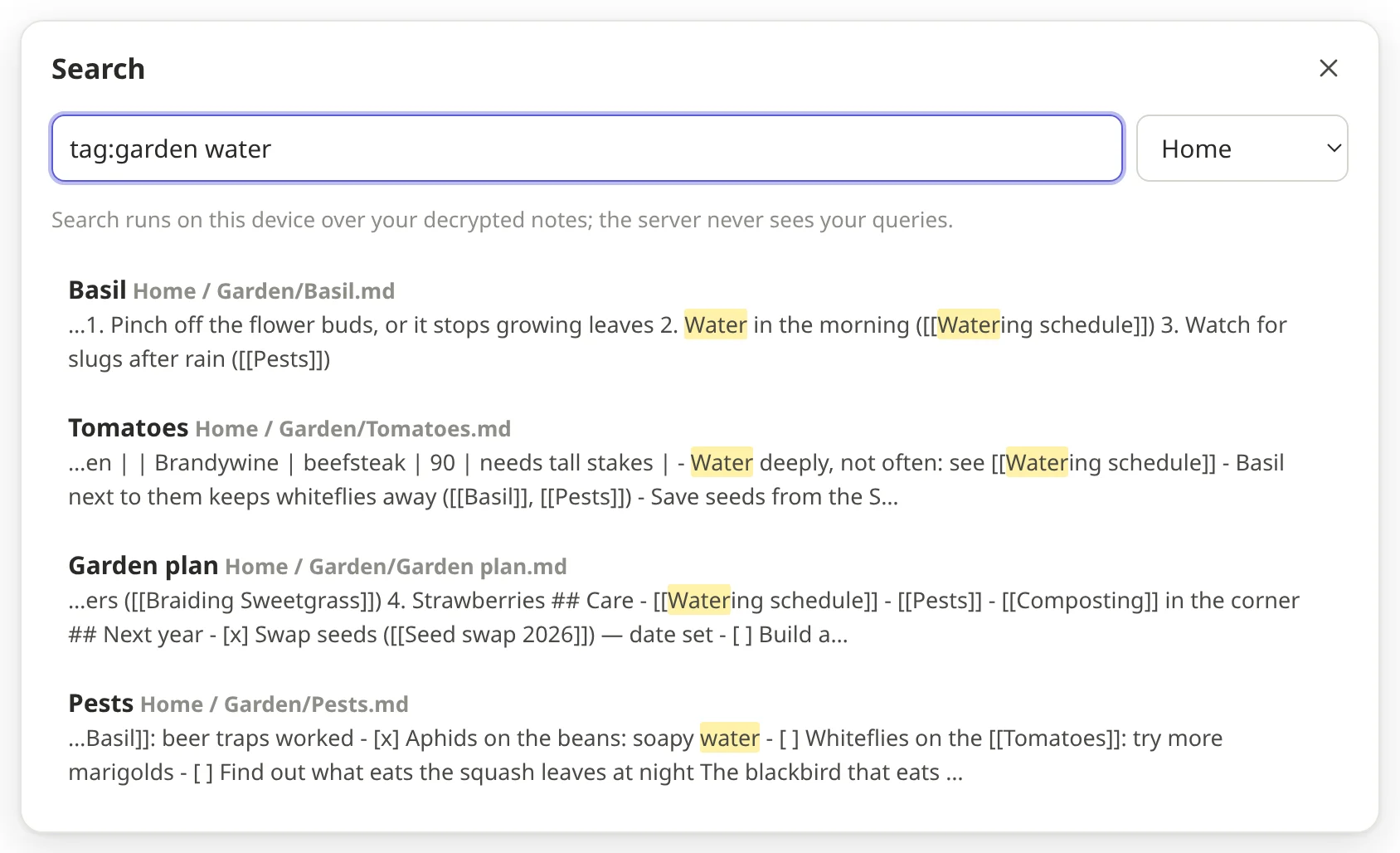
Tags: write
#and a word anywhere in a note (#ideas,#garden/tomatoes). In the reading view, click one to see every note with it.Links between notes: write
[[and a note's name (see Writing notes). The side panel (Ctrl+\) shows which notes link to the one you're on.The graph (
Ctrl+G) draws your notes as dots (drawings as squares) and their links as lines, colored by folder. Click a dot to open that note.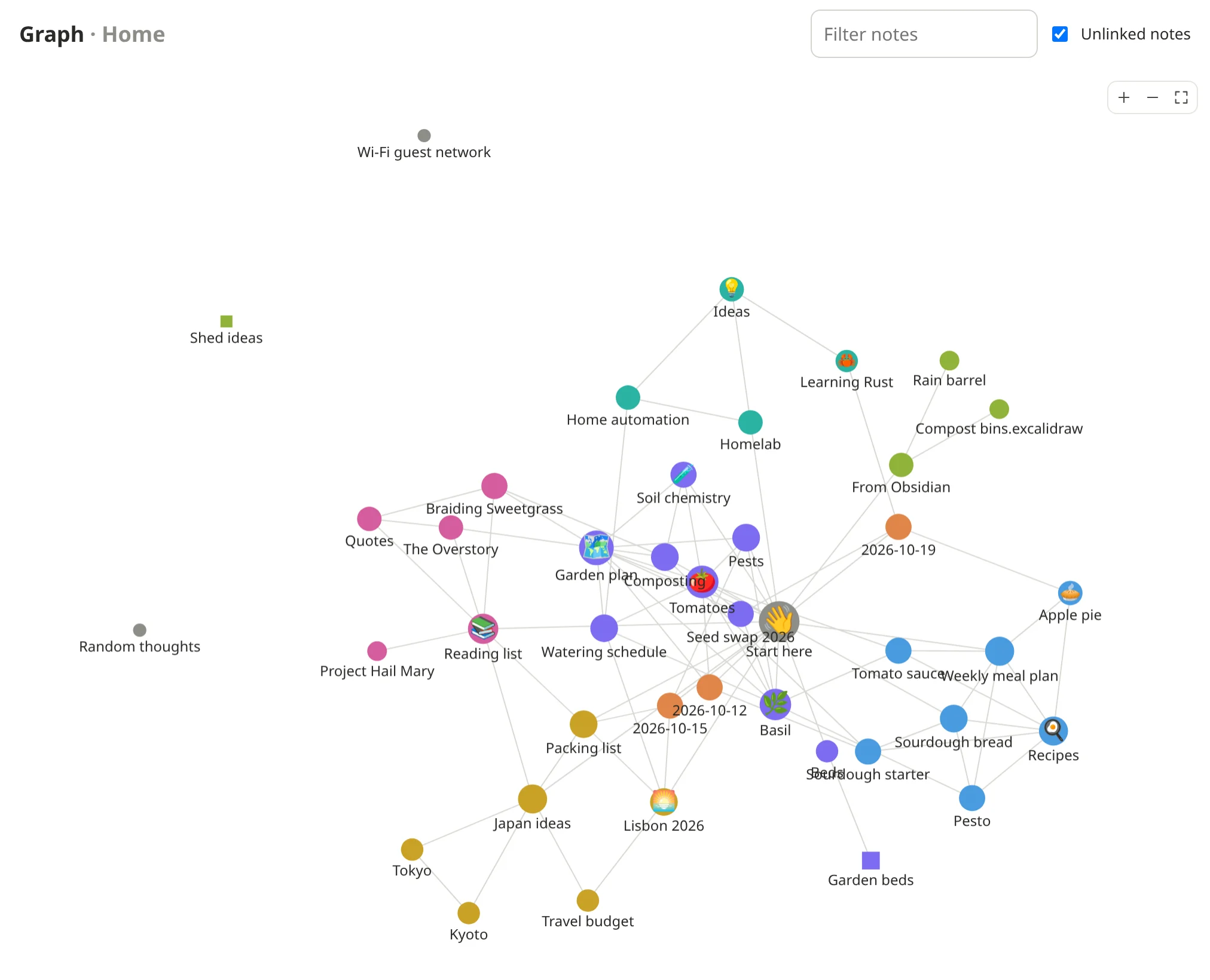
A vault's home page shows its recently edited notes and its tags.
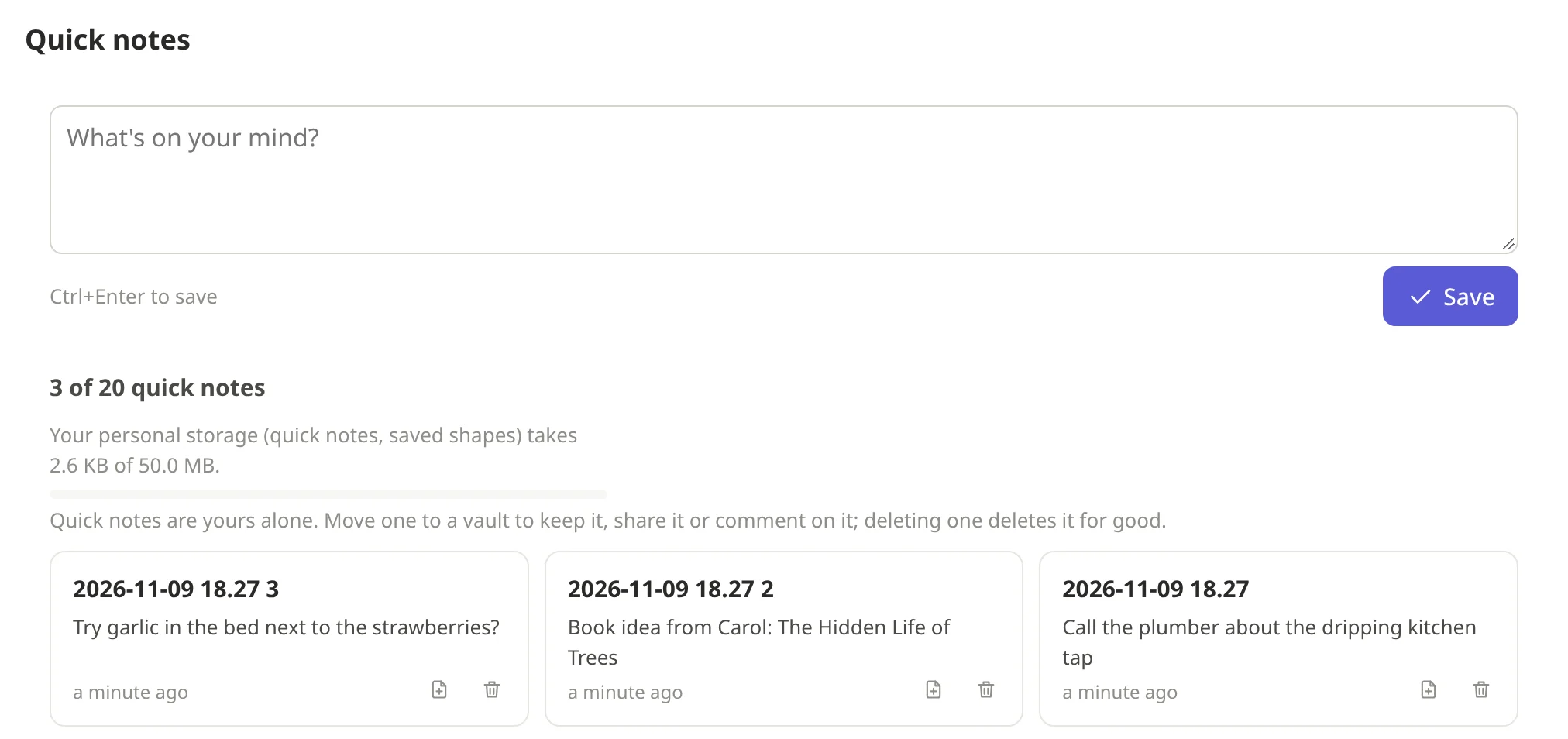
Quick notes
For a thought you don't want to lose and don't want to file yet. Alt+Q
(or Quick notes in the sidebar) opens a box: type and save. Quick notes
are yours alone, in no vault, the same from every vault and device. Sort
them out later: Move to vault… turns one into a note (its first line
becomes the name), or delete it.
Pictures and files
Drop or paste a picture, video, recording or any file into a note, or use
the paperclip in the toolbar. It's encrypted and uploaded, and shows (or
plays) where you dropped it. It's kept next to the note, in a folder
called attachments. Click a file in the sidebar to open its page: it
shows the file, the notes that use it, and lets you rename, move or
download it. More in Writing notes.
Working together
Share a vault: Share vault at the bottom of the sidebar. Type the person's e-mail address — or, for someone you already share with, their name — choose what they may do (Can view: read only, Can edit or Admin) and press Invite. They get an invitation to accept; once they do, they're in — at once if you have notekpr open, otherwise the next time you do. Until then they're listed under Invited, where the × takes the invitation back. To make someone an Owner, change their role once they're in. Who can do what has the details.
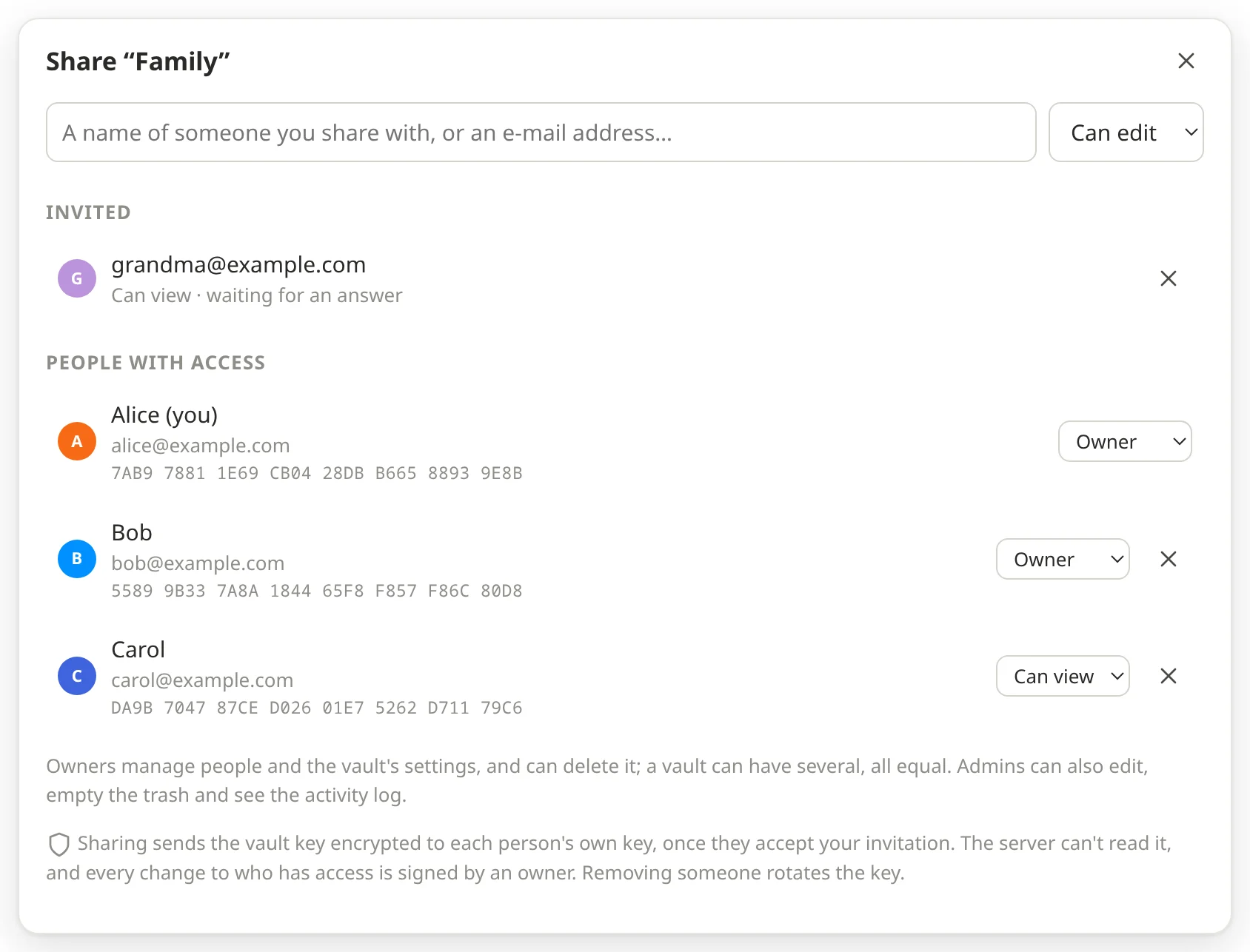
When someone invites you, a bar at the top of the page says who, and whether it's a vault or a note (its name shows once you're in): Accept or Decline. Declining doesn't tell them.
Share one note with someone outside the vault: the share button at the top of the note, then invite them the same way. They see only that note, not the rest of the vault.
Write at the same time: you see each other's cursors with their names, and who else is on the note.
Comments: select some text and press
Alt+M(or the comment button that appears). The text gets a highlight; click it to read the thread, reply, or mark it resolved (✓). Type@and a name to mention someone: it shows up under their @.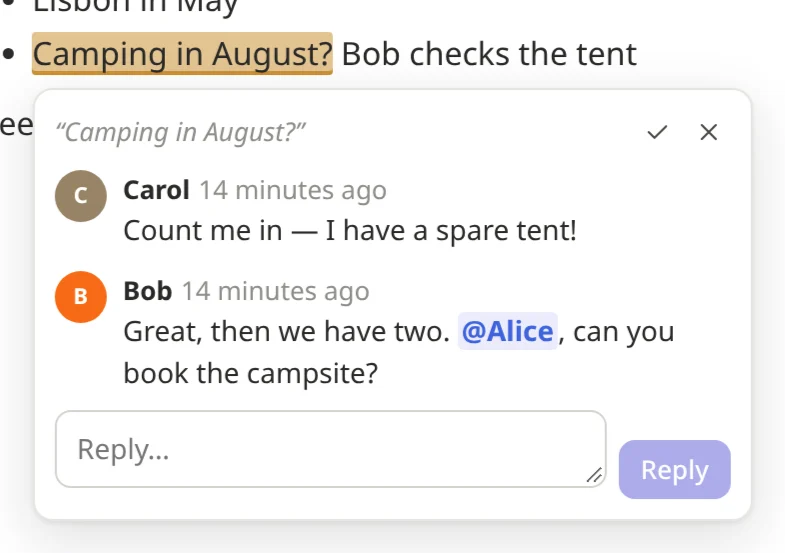
Checking who you share with: the sharing dialog shows each person's key fingerprint. Comparing it with them (in person, or on a call) makes sure the key really is theirs. If someone's key changes, notekpr warns you.
Your other devices
- Signing in on another device: sign in there, then approve it from a device that's already signed in: a bar at the top of the page asks, with a code that must match the one on the new device. No other device at hand? Use your recovery key instead.
- Without the server: Settings → Devices → Use without the server lets this browser open and edit your notes even when the server can't be reached. Changes sync when it's back.
- Where you're signed in: Settings → Sessions lists it, and signs a device out from afar.
- On your computer: the desktop app is notekpr in a window of its own that stays in the tray, and it can keep your notes in a folder of plain Markdown files too, for Obsidian, VS Code or any editor, notes already in it brought in — the first time it opens, it asks; later Settings → Desktop app (more). If the CLI keeps such a folder already, it takes it over. It can also keep your notes only on that computer, with no server and no account, and have accounts on several servers: switch between them from the menu behind your name.
On your phone
notekpr works in your phone's browser, and you can add it to the home screen: it then opens from its own icon, in a window of its own without the browser's bars, like any other app.
The sign-in screen offers it: tap Add to home screen, and sign in from the new icon afterwards. On Android that opens the browser's own dialog: tap Install and it's done. On an iPhone or iPad no web page can add itself, so notekpr shows the steps below. Not now puts the offer away in that browser. Already signed in, or put it away? The steps:
iPhone and iPad
- Open your notekpr address in Safari. Other browsers have the same under Share.
- Tap Share. In Safari it may be under ⋯ first.
- Scroll down the list and tap Add to Home Screen. Not there? Edit Actions at the end of the list adds it.
- Keep Open as Web App on, and tap Add.
- Open notekpr from its new icon and sign in. On an iPhone the app keeps its own copy of your notes, apart from the browser's, so notekpr counts it as a new device: approve it from another device, or with your recovery key (above).
Android
- Open your notekpr address in Chrome.
- Tap ⋮, then Add to Home screen, then Install. (Some versions say Install app in the menu.)
- Open notekpr from its new icon.
Other browsers have it in their menu too: in Vivaldi, Add Page To → Home screen → Install.
To have it start even with no connection at all, turn on Settings → Devices → Use without the server in the app.
Bringing notes in, taking them out
- Import: a vault's Import notes takes a folder or
.zipof Markdown files (an Obsidian vault, say) with its pictures, or a Notion export. - Export: Vault settings → Export as Markdown (.zip) downloads a vault as plain files any notes app opens. Settings → Account → Data exports several vaults and your quick notes at once, to move to another server.
- A single note: ⋯ → Download as Markdown.
Settings
- Account: your key fingerprint, how much room your quick notes take, exporting and importing everything (Data), deleting your account.
- Devices: the devices that can open your notes, and this browser's offline use.
- Sessions: where you're signed in.
- Recovery: a new recovery key.
- AI agents: give an AI assistant access to only the vaults you choose (agents).
- Editor: the theme, line numbers beside the text, Vim keys, how wide notes are, and notifications when someone mentions you.
Ctrl+/ (or ? outside the editor) lists every keyboard shortcut.